![checkin-logo-1.svg]](https://www.checkinevent.com/hubfs/checkin-logo-1.svg)
In this article:
The contact card: everything about one person
Contacts is the list of everyone who has registered for or bought a ticket to one of your events, across your whole organization. It shows who they are, what they have attended, and which emails and text messages they have received. You can search, filter, save selections as reports and export the list to Excel.
Where do I find Contacts?
Click “Contacts” in the sidebar.
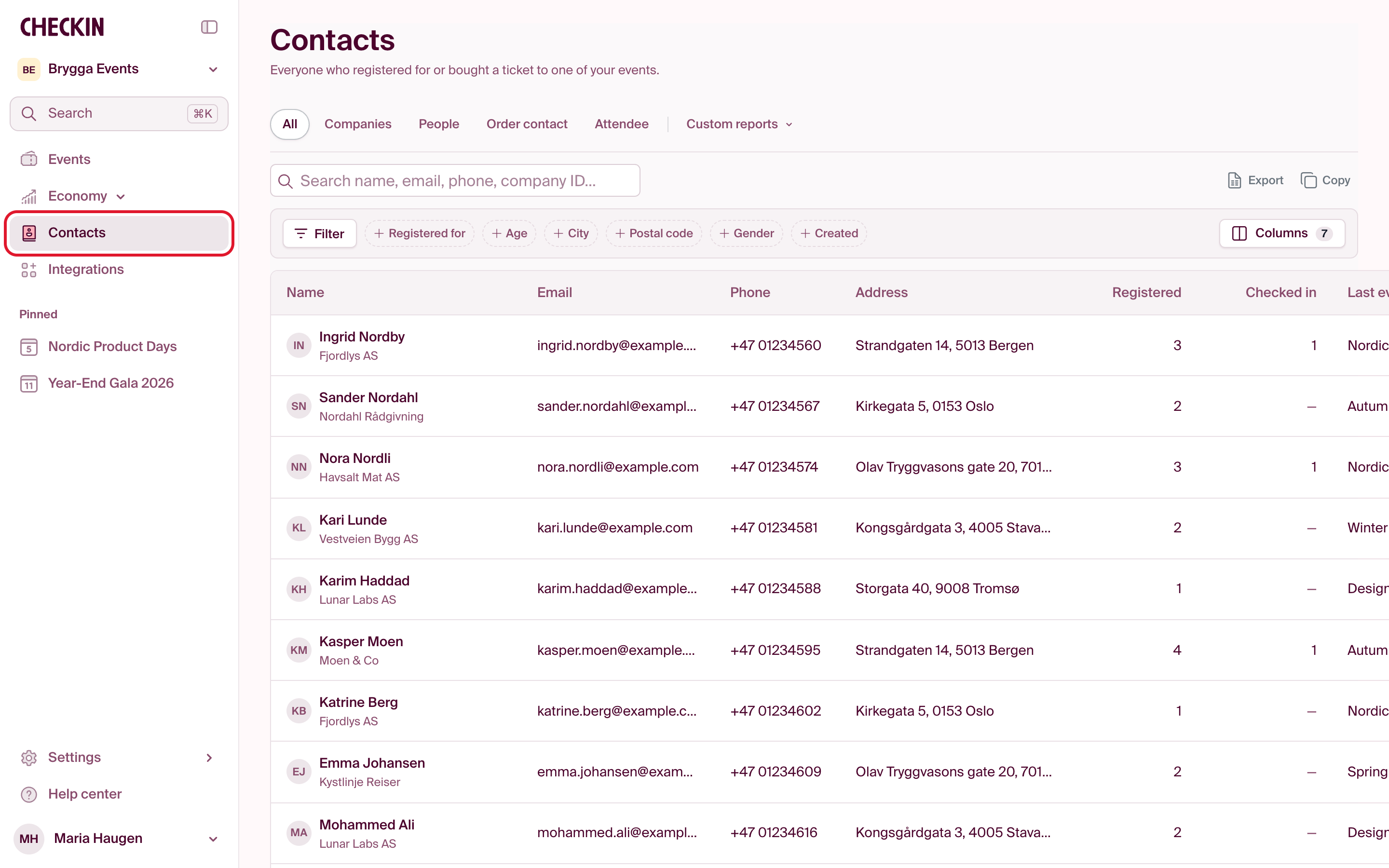
At the top, choose who to show:
- All: every contact in the organization.
- Companies and People: one type only.
- Order contact: those who placed an order, for themselves or for others.
- Attendee: those who hold a ticket in their own name.
Click a column heading to sort, and use “Columns” to choose what is shown.
Search in plain words
The search field finds names, email addresses, phone numbers and company IDs. You can also type what you are looking for the way you would say it, for example “women over 40 who attended”. Press Tab when the field shows “Press Tab”.

The sentence becomes filters, and the list shows the matches. Check the filters: you can change or remove each one, and add more with the buttons in the filter bar, such as “Registered for”, “Age” and “City”. “Clear” removes all filters.
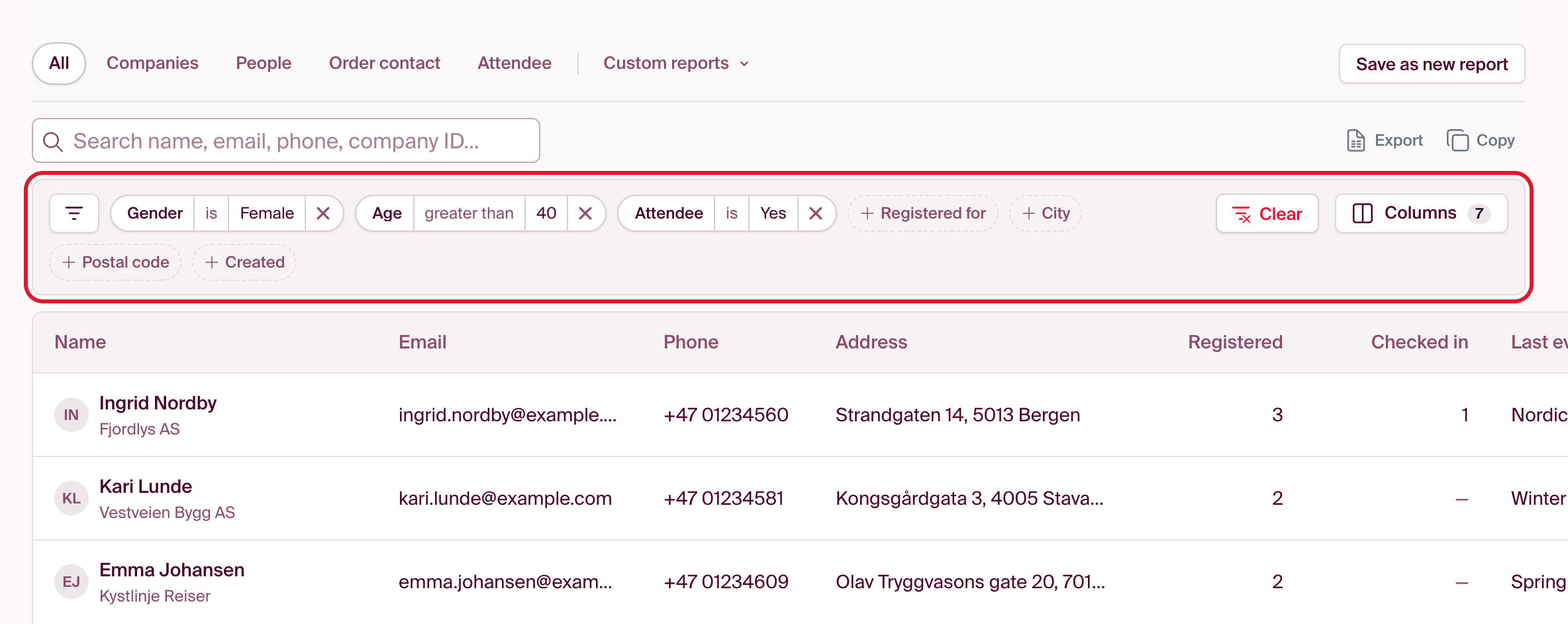
If the search finds no filters that fit, the list shows no results rather than guessing. Try putting it differently, or set the filters yourself.
Save a selection as a report
Once you have chosen filters and columns, click “Save as new report” and give the report a name.

Next time, you will find it under “Custom reports”. A report always shows today’s contacts, so new people who match its filters are included automatically.

The contact card: everything about one person
Click a contact to open the contact card. The top shows how many registrations the person has, how many times they have checked in, and their next event.
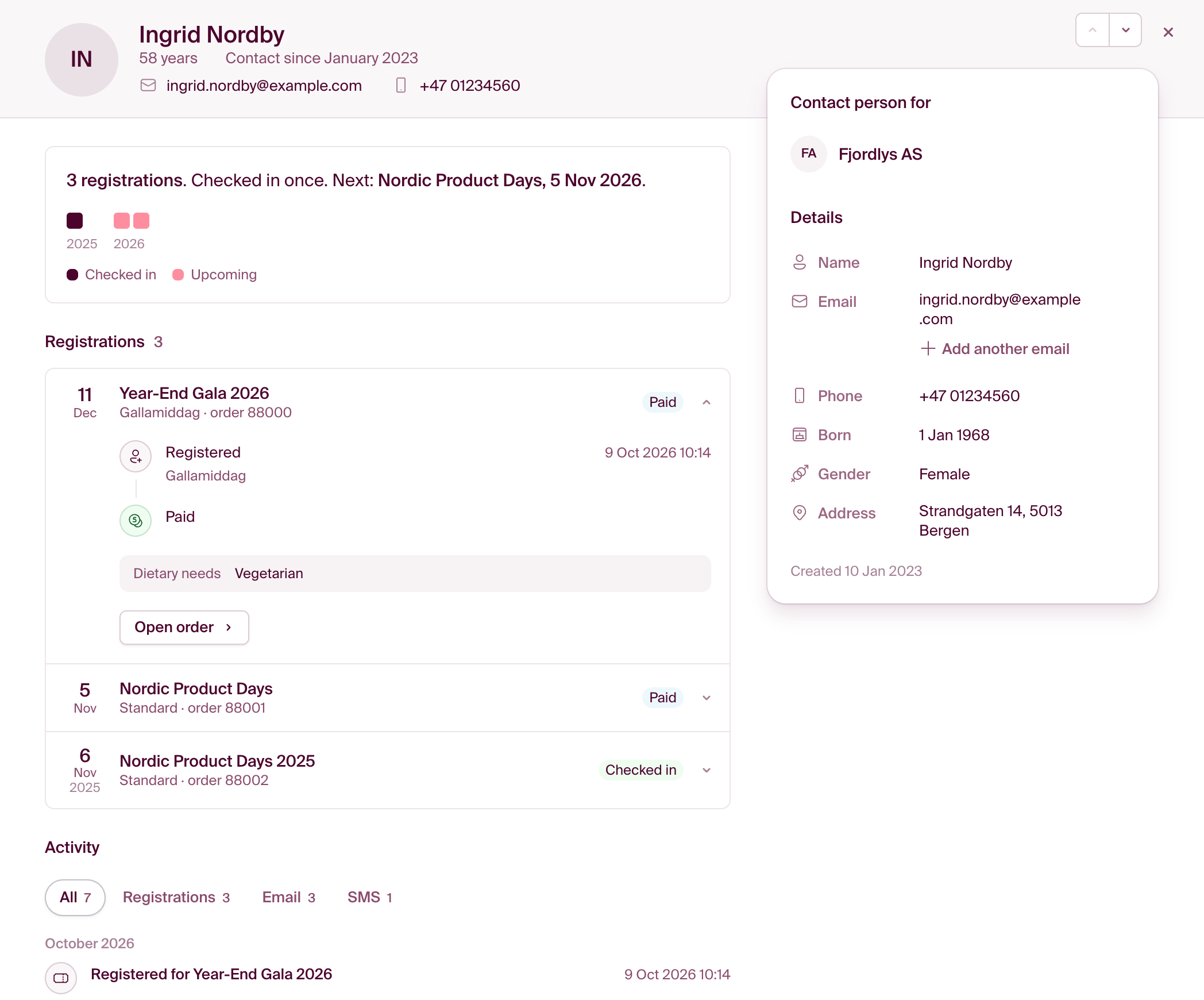
- Registrations: each event, with ticket, payment, answers from the registration form and check-in. “Open order” takes you to the order.
- Activity: registrations, emails and text messages to the person, with whether they arrived, and why not if they didn’t.
- Contact person for: the companies the person is a contact person for.
- Details: name, email, phone, date of birth, gender and address.
The arrows at the top right go to the previous and next contact in the list, so you can step through a selection without closing the card.
Edit a contact
Click a detail on the contact card to change it. The change is saved when you press Enter or leave the field. Esc cancels.
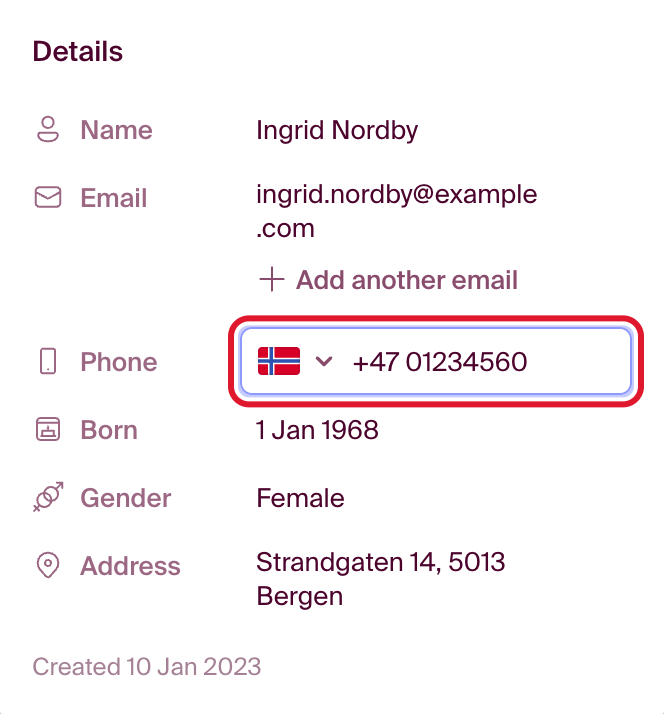
“Add another email” gives the person an extra address. Contact people are added from the company: open the company and click “Add contact person”.
With read access, you can see the contact card but not change it. Editing requires write access.
Export or copy the list
“Export” downloads the list as an Excel file, with the filters and columns you have chosen. “Copy” puts the same list on the clipboard, so you can paste it straight into a spreadsheet.

For a long list, Checkin loads the rest of the contacts first. Click “Load and continue” when asked.
Who has access?
Contacts is available to the organization’s administrators and to users with at least read access to the organization’s events. Editing contacts requires write access. You change access under Settings › Users.