![checkin-logo-1.svg]](https://www.checkinevent.com/hubfs/checkin-logo-1.svg)
My order is the page where your buyers see and change their order after buying. The link is in the order confirmation they get by email. There they fill out attendees, correct details, add add-ons and pay for their changes themselves, within the rules you set.
What you get out of it
- Fewer support requests. Buyers correct names, contact details and answers themselves, instead of emailing you about it.
- You sell tickets before the names are ready. Companies and groups can buy now and add the attendees later. Checkin can remind the order contact about missing attendees.
- More sales after the purchase. Buyers can add paid add-ons, and pay for them in My order.
- Payment takes care of itself. If the buyer pays by invoice, an invoice for the changes is sent an hour after their last change. With card or Vipps, they pay right away. If the order gets cheaper, a credit note is sent.
- You decide. You choose what buyers can change, and the deadline for each. The rules are written out for buyers automatically.
Choose what buyers can change
Go to the “Form builder” step in the event setup, and open “Attendees and order changes”. Your choices are saved right away, and also apply to orders already placed. Once the event has started, you can no longer change them.
When attendees are added
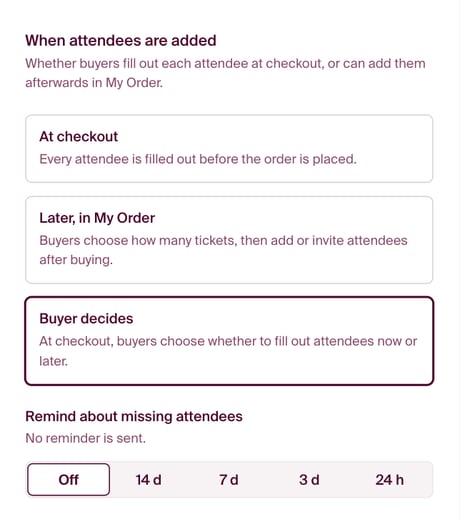
- “At checkout”: every attendee is filled out before the order is placed.
- “Later, in My order”: buyers choose how many tickets, then add or invite the attendees after buying.
- “Buyer decides”: at checkout, buyers choose whether to fill out the attendees now or later.
Under “Remind about missing attendees” you choose whether the order contact gets a reminder 14 days, 7 days, 3 days or 24 hours before the event starts, if attendees are still missing. “Later, in My order” needs “Participant fields” to be turned on, and isn’t possible while tickets have a waiting list.
Changes and cancellation
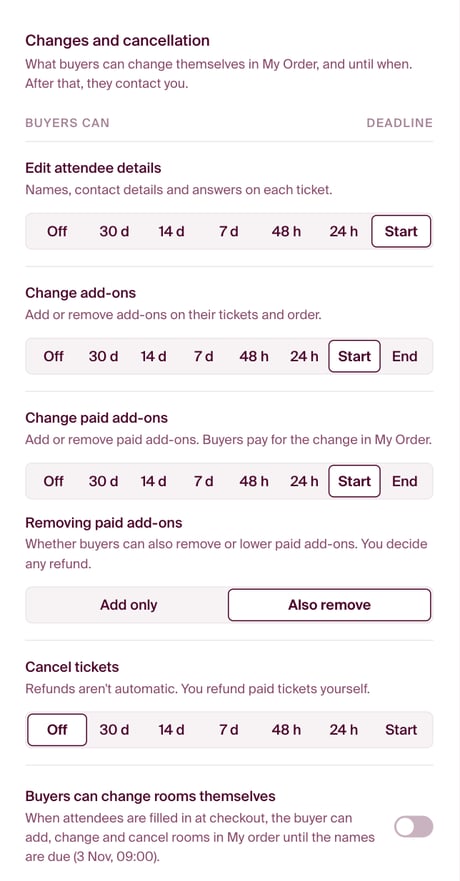
For each item you choose how long buyers can do it themselves: “Off”, or until 30 days, 14 days, 7 days, 48 hours or 24 hours before the event starts. “Start” means until the event starts, and “End” until it is over. After the deadline, buyers have to contact you.
- “Edit attendee details”: names, contact details and answers on each ticket.
- “Change add-ons”: add or remove free add-ons.
- “Change paid add-ons”: add or remove paid add-ons. Buyers pay for the change in My order. Under “Removing paid add-ons” you choose “Add only” or “Also remove”. If a buyer removes something, you decide whether to refund it.
- “Cancel tickets”: buyers cancel tickets themselves. Refunds aren’t automatic, so you refund paid tickets yourself.
If the event has accommodation, you can also turn on “Buyers can change rooms themselves”. Buyers who filled out the attendees at checkout can then add, change and cancel rooms in My order up to the name deadline. You set the name deadline in the “Accommodation” step, under “Rooms and nights”. Read more in Let attendees buy tickets and rooms without saying who is coming.
Change policy
Under “Change policy” the rules are written out from your choices, and they update when you change them. They are written in the event’s language. If you turn on “Add to the event’s terms”, they are shown after your own terms, and buyers see them at checkout. Beside the settings, “Buyer preview” shows the checkout and My order the way your buyers will see them.
How buyers use My order
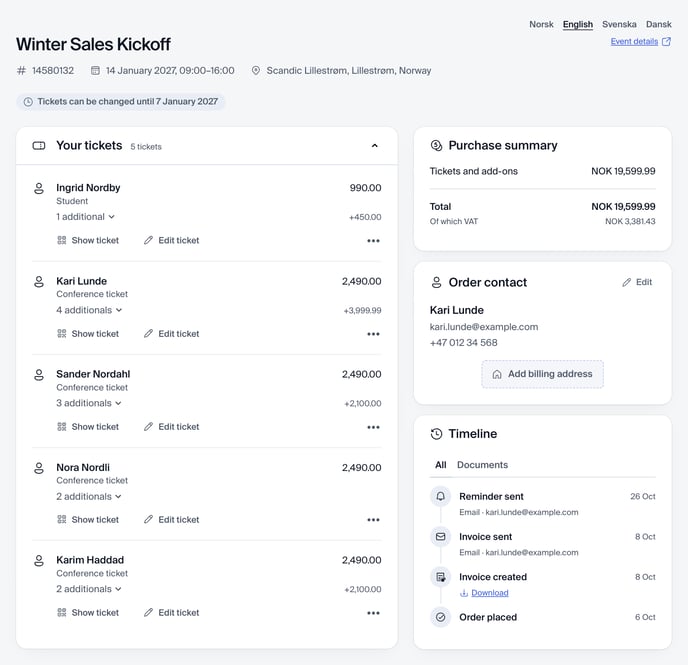
- At the top are the event and the deadlines, for example “Tickets can be changed until 7 January 2027”.
- “Your tickets” shows each ticket with its name, ticket type, add-ons and price. Tickets that haven’t been filled out, the buyer fills out with “Fill out now”, or sends to the attendee with “Send invite”.
- “Purchase summary” shows what the order costs, and “Order contact” who placed it.
- “Timeline” shows everything that has happened to the order. Under “Documents” the buyer downloads invoices and receipts.
To change a ticket, the buyer clicks “Edit ticket”, changes the add-ons or answers, and clicks “Done”.
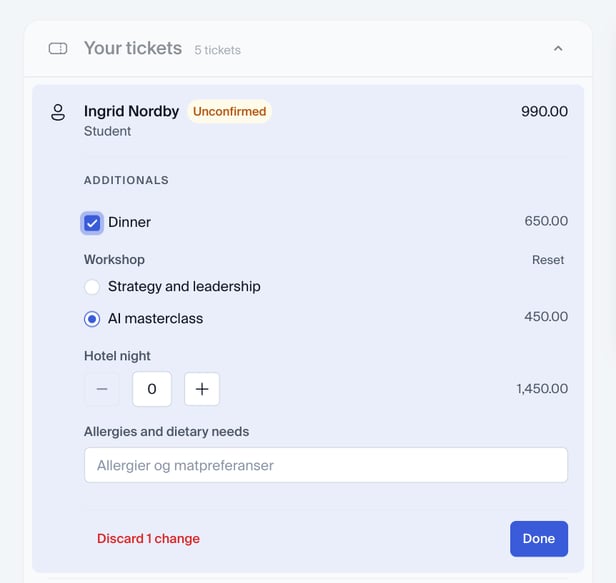
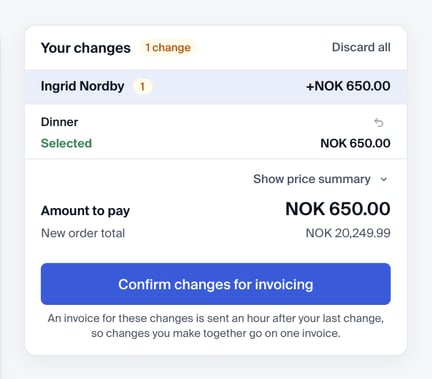
The changes are collected under “Your changes”, with what they cost. Nothing on the order changes until the buyer confirms. With an invoice, they confirm with “Confirm changes for invoicing”. With card or Vipps, they pay with “Pay and confirm changes”.
If you allow it, the buyer cancels a ticket with “Cancel ticket” in the ticket’s menu (•••). Canceling the last ticket cancels the whole order.
If the buyer also booked rooms, read what they see in Buy tickets and rooms now, fill in the details later.