![checkin-logo-1.svg]](https://www.checkinevent.com/hubfs/checkin-logo-1.svg)
How to Add “Time Slots”
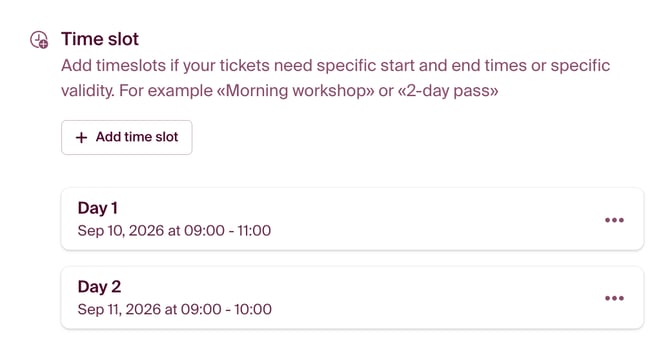
To add a specific time slot, click “Edit event” and go to “General”. Just below the event date, you’ll find “Time Slots”.
Click “Add timeslot” and enter the name of the time slot, along with its start and end times.
How to Link “Time Slots” to a Ticket
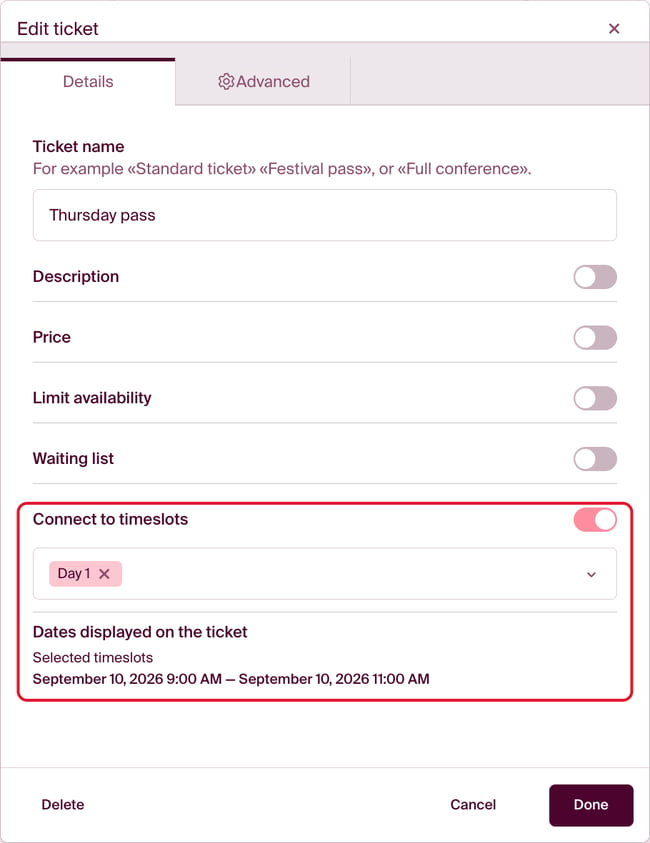
In “Edit event”, under “Tickets”, you can link your tickets to the time slots you created in the previous step.
When you create or edit a ticket, you’ll find “Connect to timeslots” in the ticket settings. Choose one or more time slots under “Select timeslots”.
Below you can see which time slot will be displayed on the ticket. If you don’t select a custom time slot, the event’s main time will be shown on the ticket by default.
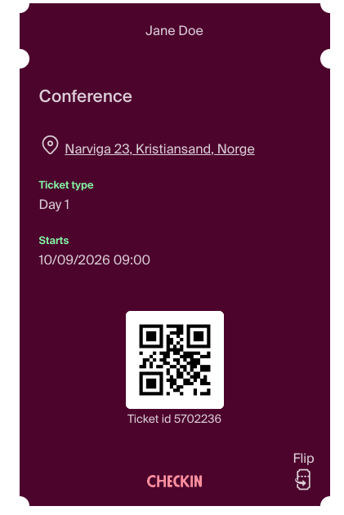
This is how the ticket looks with a “time slot”
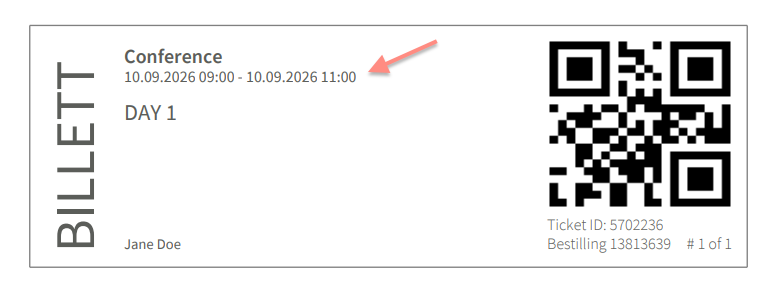
The mobile ticket will display the event’s start time based on the “time slot” the ticket is linked to. If you have multiple time slots linked to the same ticket, the entire time range will be shown on the ticket.
The PDF ticket will display both the start and end times based on the “time slot” the ticket is linked to.