![checkin-logo-1.svg]](https://www.checkinevent.com/hubfs/checkin-logo-1.svg)
Go directly to:
How to enable two-factor authentication
How to deactivate two-factor authentication (2FA)?
When two-factor authentication (2FA) is turned on, you will receive a 6-digit code via email that you need to enter when you log in to Checkin.
How to enable two-factor authentication (2FA)?
- Click your name at the bottom of the sidebar and choose “Two-factor authentication”.
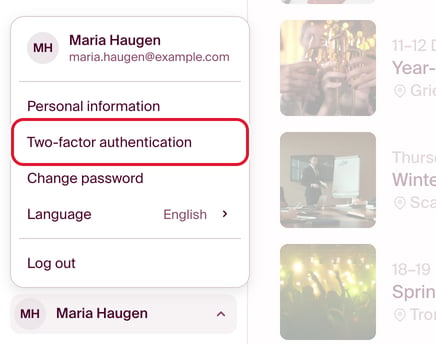
- Click “Set up code by email” in the window that appears.
- Follow the guide in the window:
- “send authentication code to your email address”
- Find the email in your inbox from sender no-reply@messenger.checkin.no, which contains the 6-digit code.
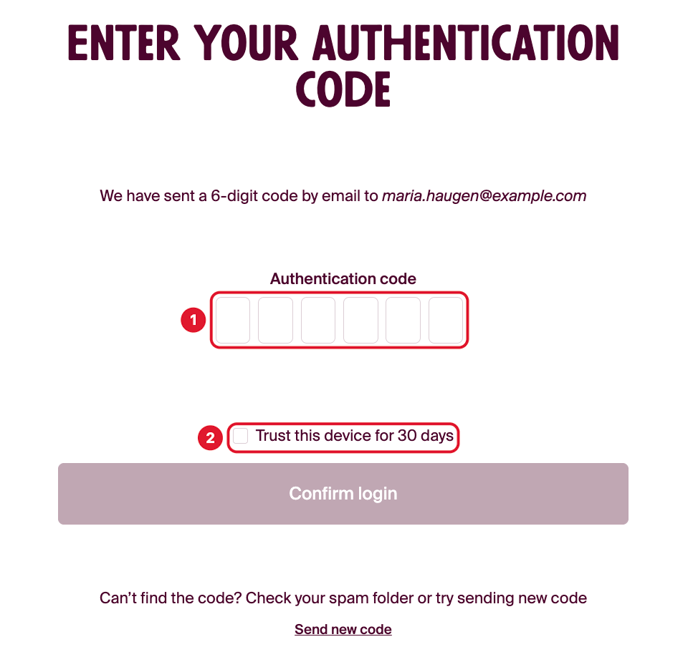
- Enter the 6-digit code you received by email in the Checkin window and click “complete setup.”
Once the setup is complete, every time you log in to Checkin, you will receive a login code via email that needs to be entered—unless you tick off the box “trust the device for 30 days”.
How to disable two-factor authentication (2FA)?
To disable two-factor authentication (2FA), click your name at the bottom of the sidebar and choose “Two-factor authentication” (same as when you turned it on).
A window will appear with a switch inside. When 2FA is active, the switch is turned on and it says “on”.
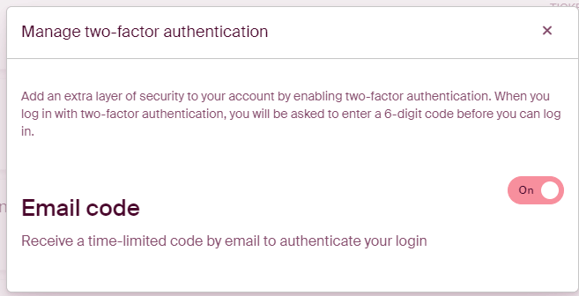
To deactivate, click on the switch and confirm with your password in Checkin, then click “deactivate authentication by email”.
-2.png?width=579&height=329&name=image%20(2)-2.png)
When you are prompted to enable again, it is turned off.