.svg)
Talk to your event data
Connect an AI tool straight to your Checkin account. Ask in plain words — get answers from your own events in seconds. No reports, no exports, no extra cost.
Plug ChatGPT Claude or Copilot into Checkin.
 Checkin
Sample data for the demo. Once you’re connected, your assistant answers with your own numbers.
Ask, and Checkin finds the answer
Examples of what the assistant can answer once it’s connected to Checkin. Tap a question and it plays in the demo above.
0 of 156 attendees have registered allergies or accessibility needs.
Names hidden by default — ask explicitly for personal details.
What you used to request a report for, you can now simply ask about.
Fourteen tools, two categories
The assistant picks the right tool by itself based on your question. Here’s what it has to work with.
Search and lookup
Analytics and reporting
Built for privacy
Two switches, set by each organization’s administrators: one decides whether AI assistants can reach the organization at all, the other whether they can see personal data. With personal data hidden, no assistant can pull a name, an email or a phone number — no matter how it’s asked. Contact lookup leaves the organization out.
Only what you can already see
An assistant acts as the person who connected it, with exactly their Checkin access — never more. No sessions are stored; every single call carries its own token.
Admins hold the switches
Each organization decides for itself: turn AI assistants off entirely, or hide personal data. Changes reach connected assistants on their very next call, and no assistant can change them.
Masked by default
Even with personal data available, attendee data arrives as initials and masked email — full names only when you ask. Statistics and finances carry none of it, either way.
Full audit log
Every call is logged with tool, user, timestamp and every organization it touched.
You stay in control: you can revoke access at any time in the AI tool.
How the connection works
MCP (Model Context Protocol) is an open standard for connecting AI tools to data. You add the server once — then it translates your questions into safe lookups in Checkin.
# You ask:
"How are ticket sales for Annual Conference 2026 going?"

# The assistant calls the tool:
{
  "tool": "event-dashboard",
  "event": "Annual Conference 2026"
}

# Checkin answers:
{
  "sold": 342, "capacity": 400,
  "revenue_nok": 487500,
  "waitlist": 12,
  "next_actions": ["sales_over_time", "compare_events"]
}
How to connect
You need a Checkin account and an AI tool that supports MCP. The connection is included with Checkin — no extra cost. Pick your tool below.
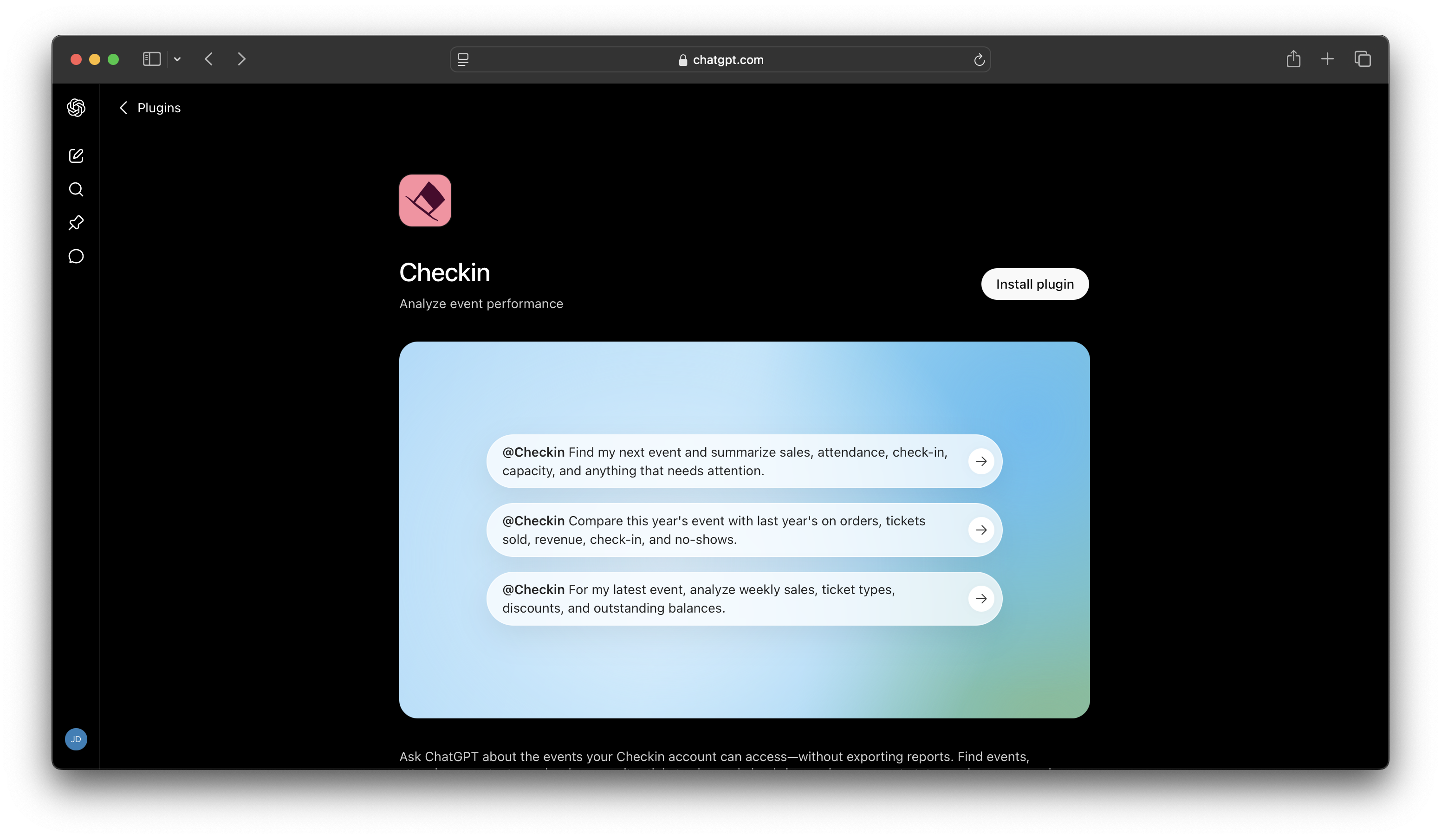
Find Checkin in ChatGPT’s app directory and install it.
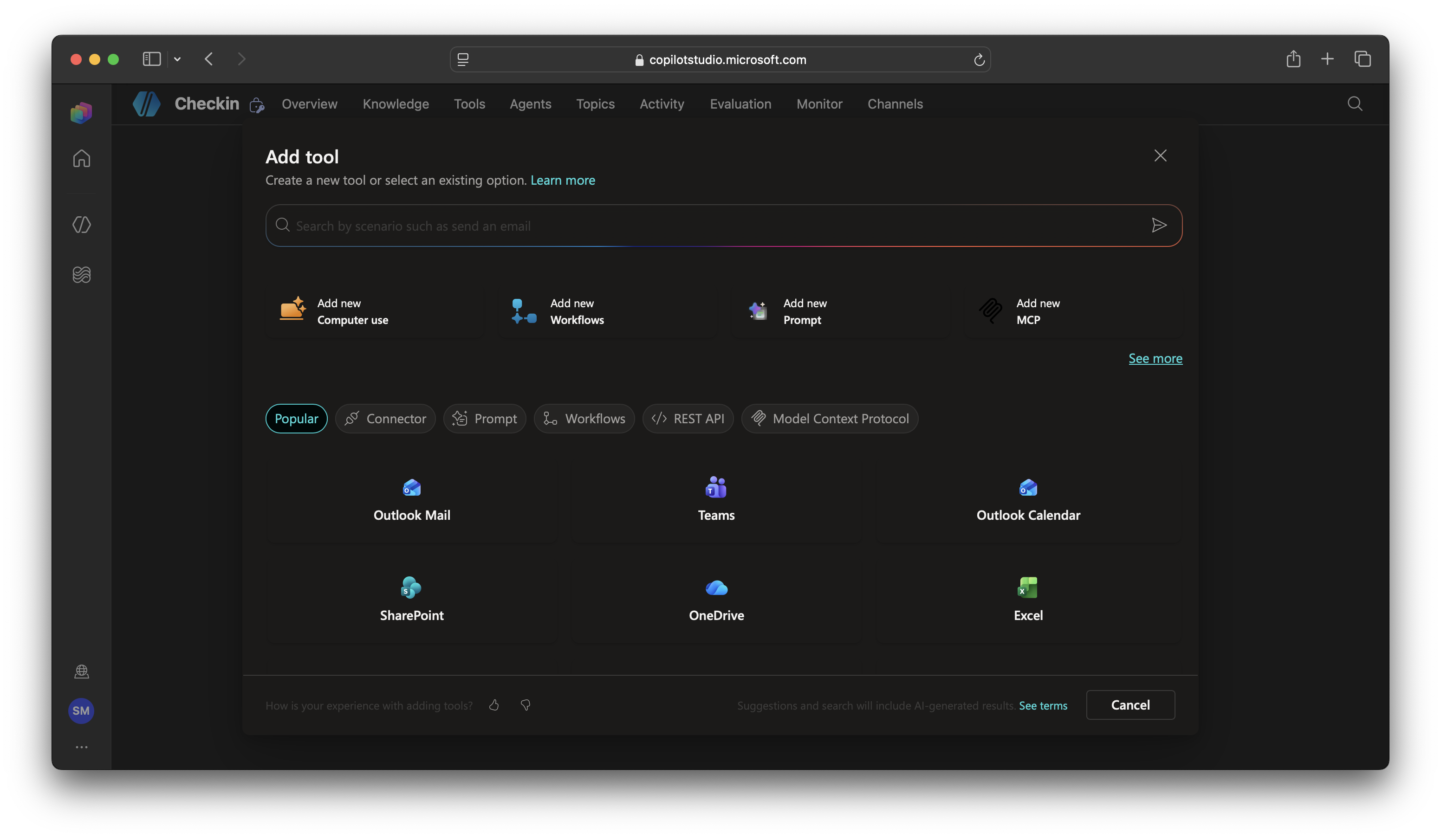
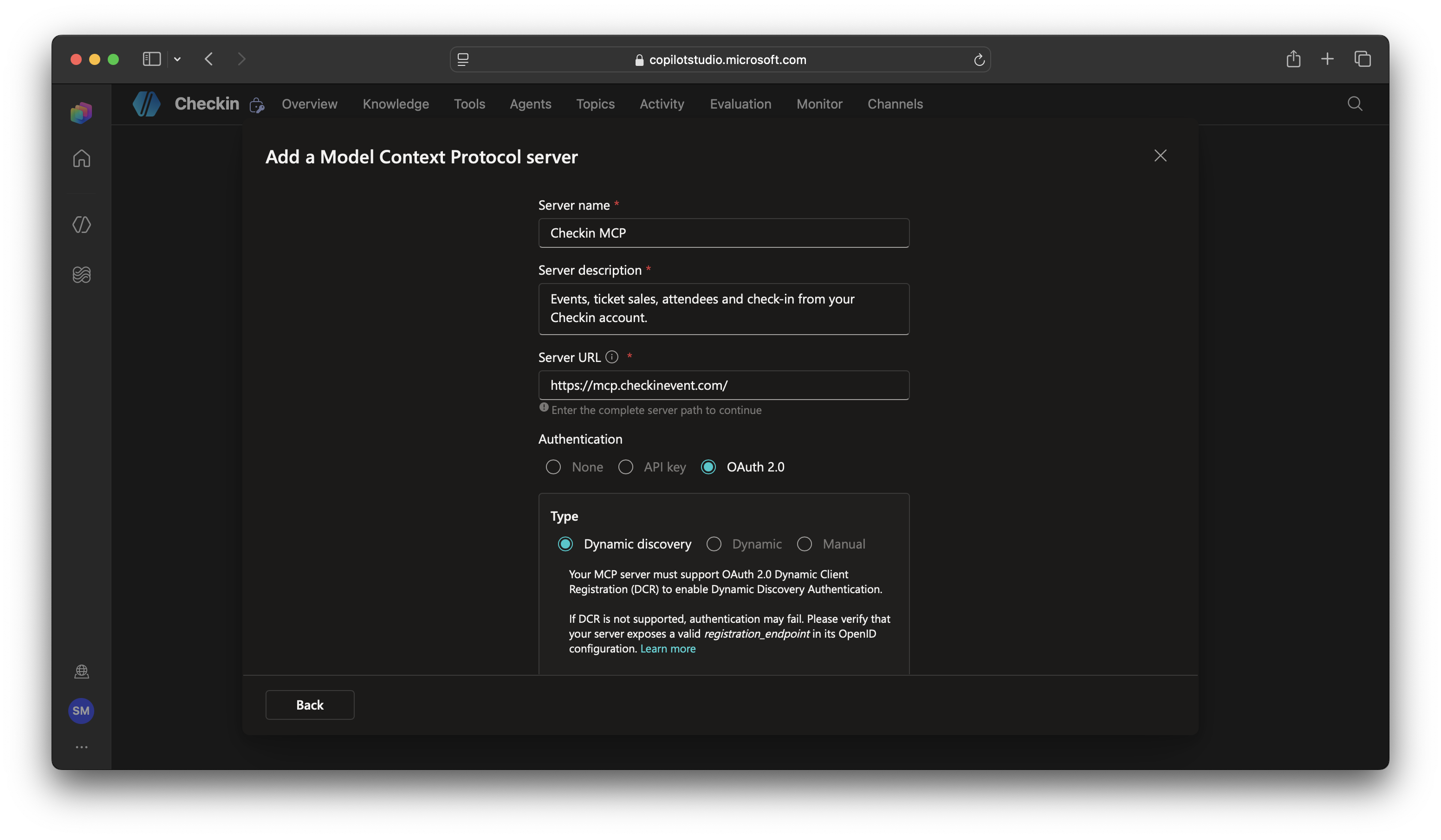
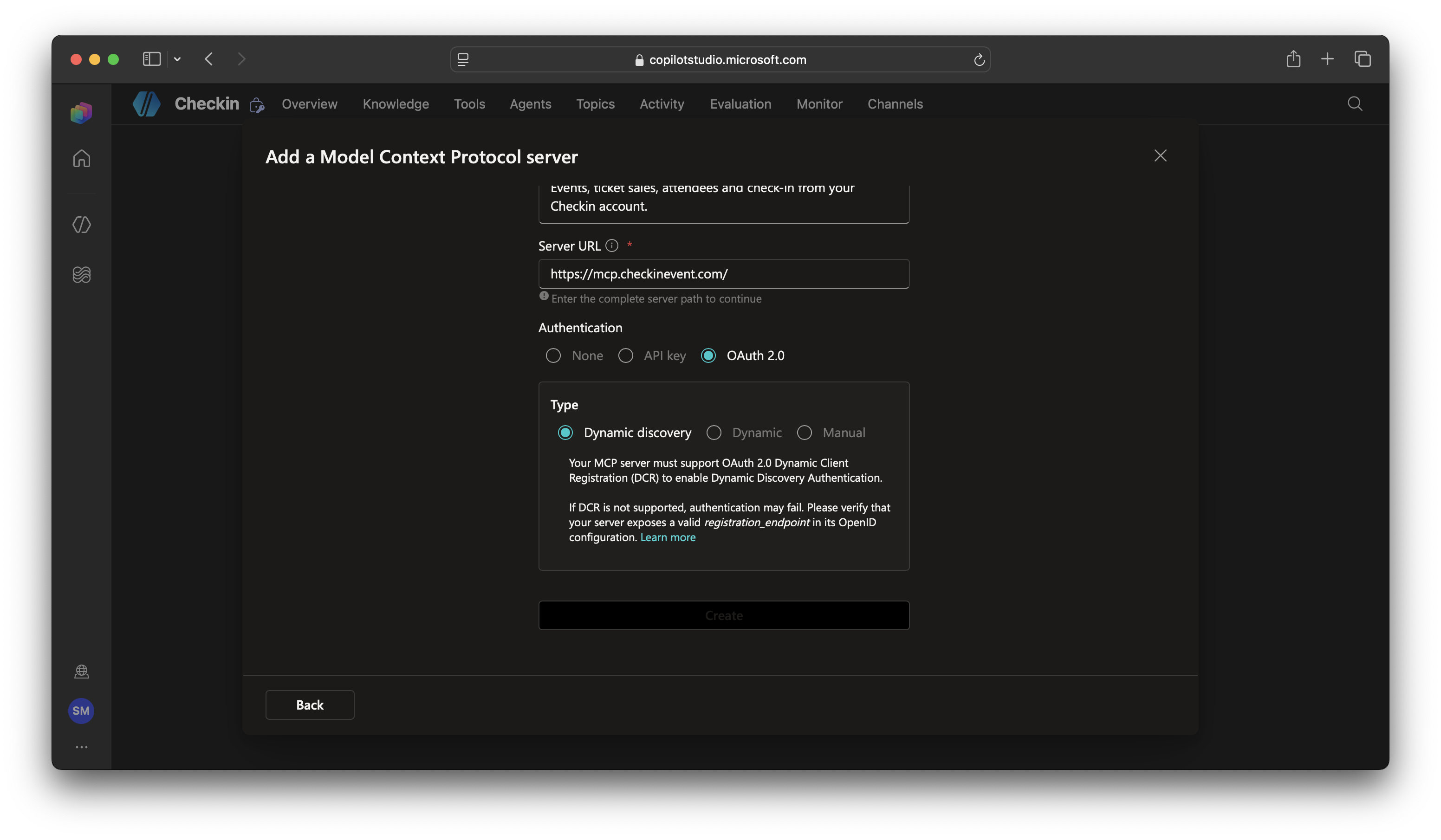
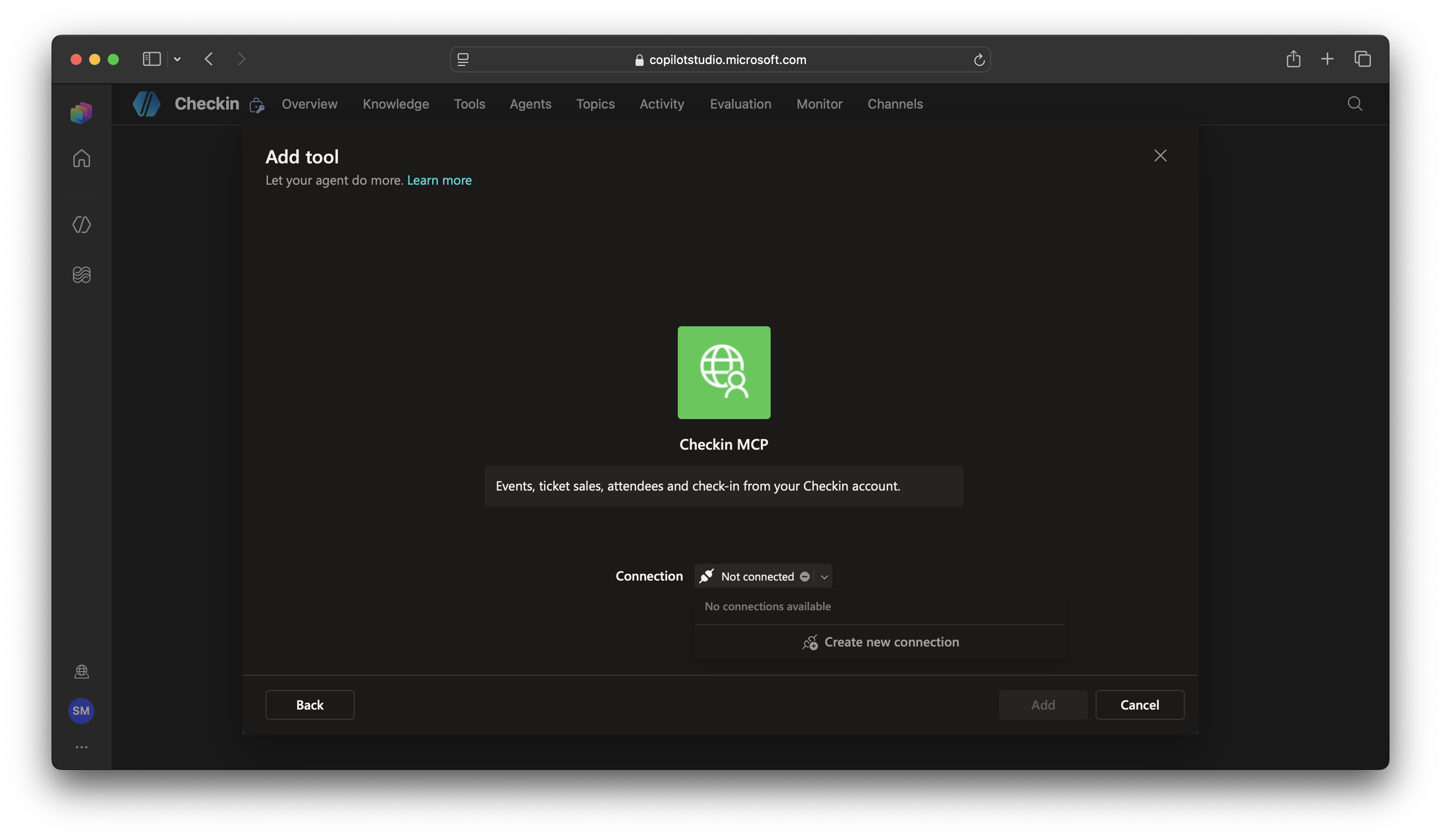
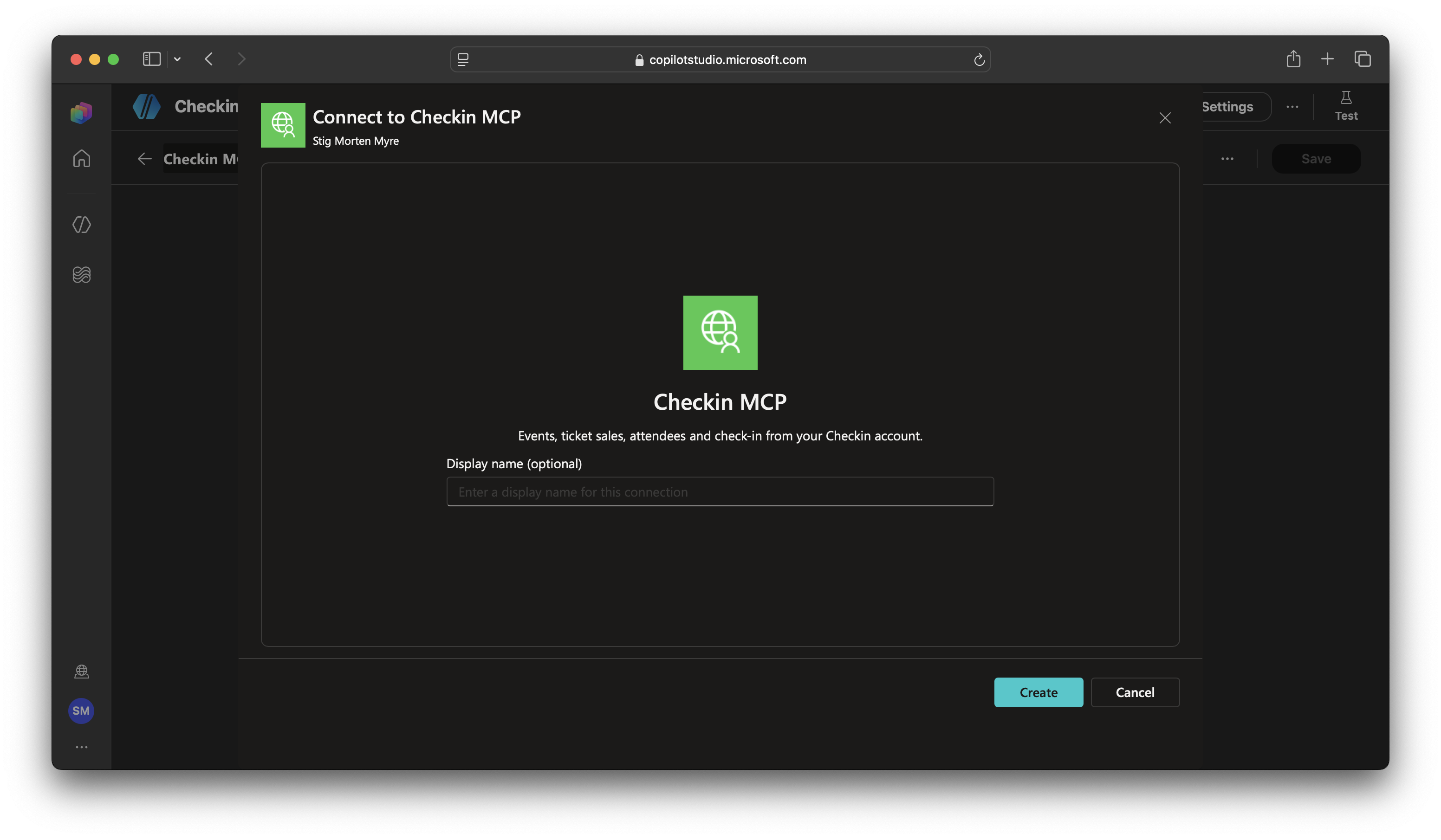
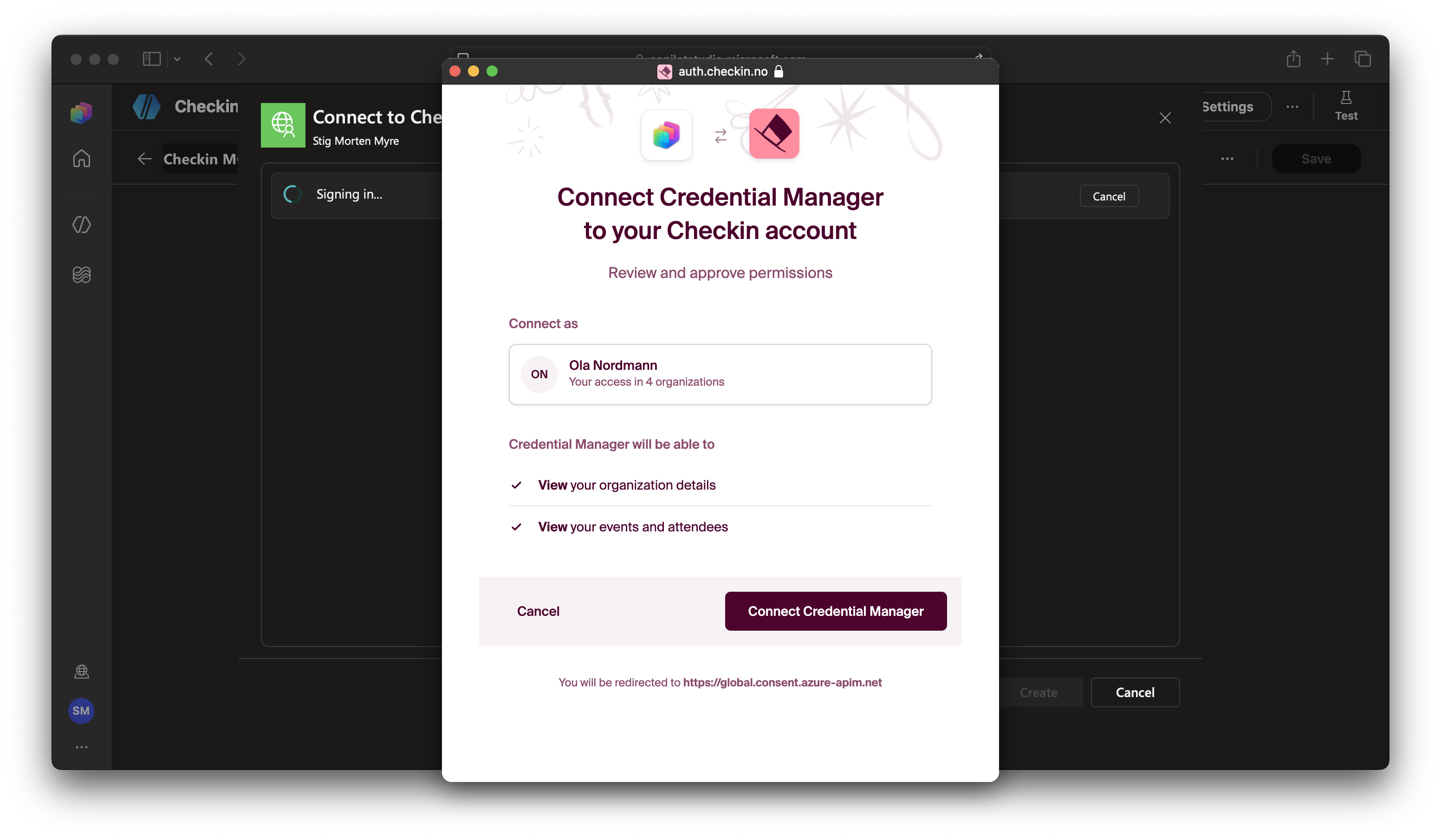
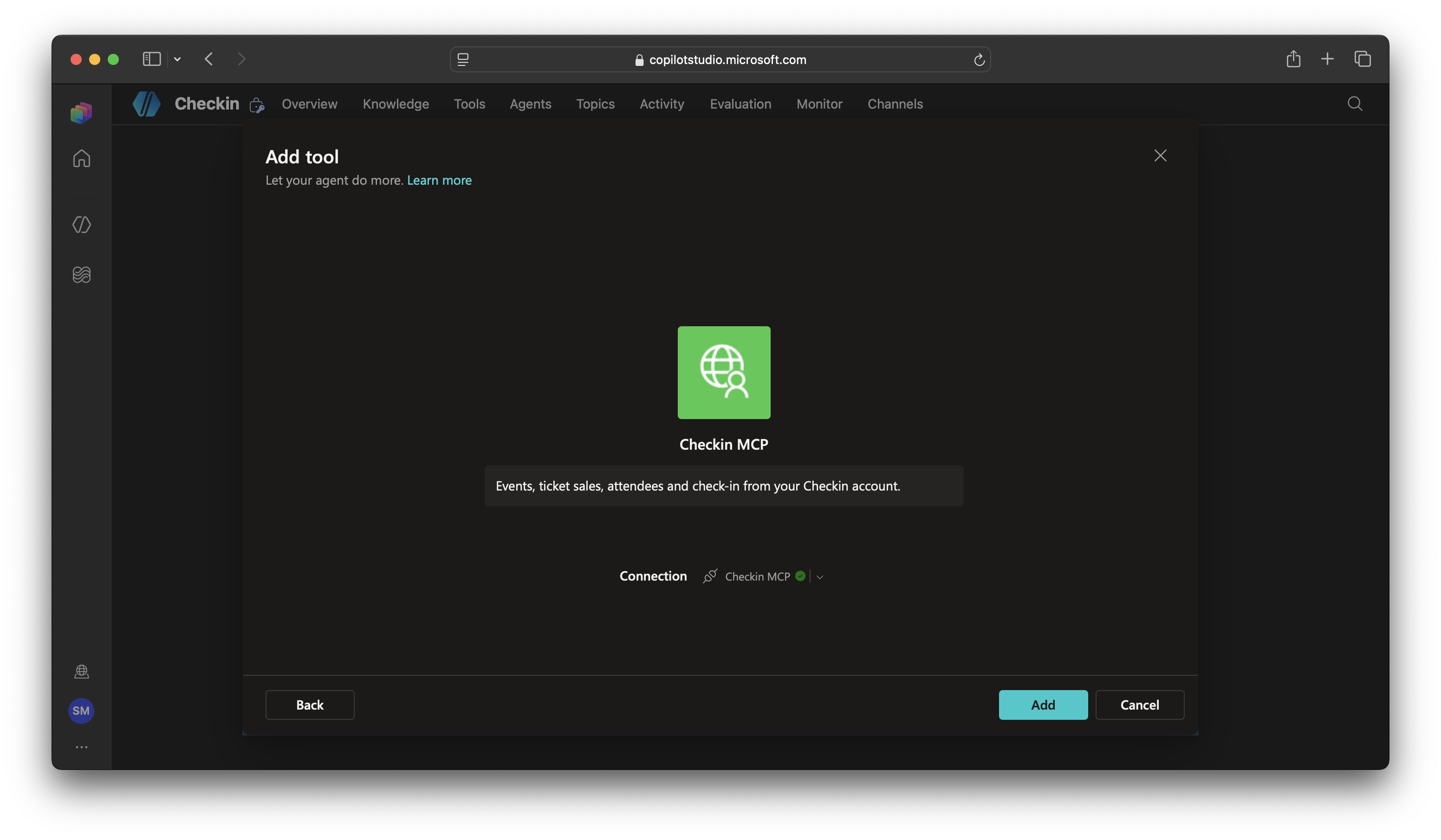
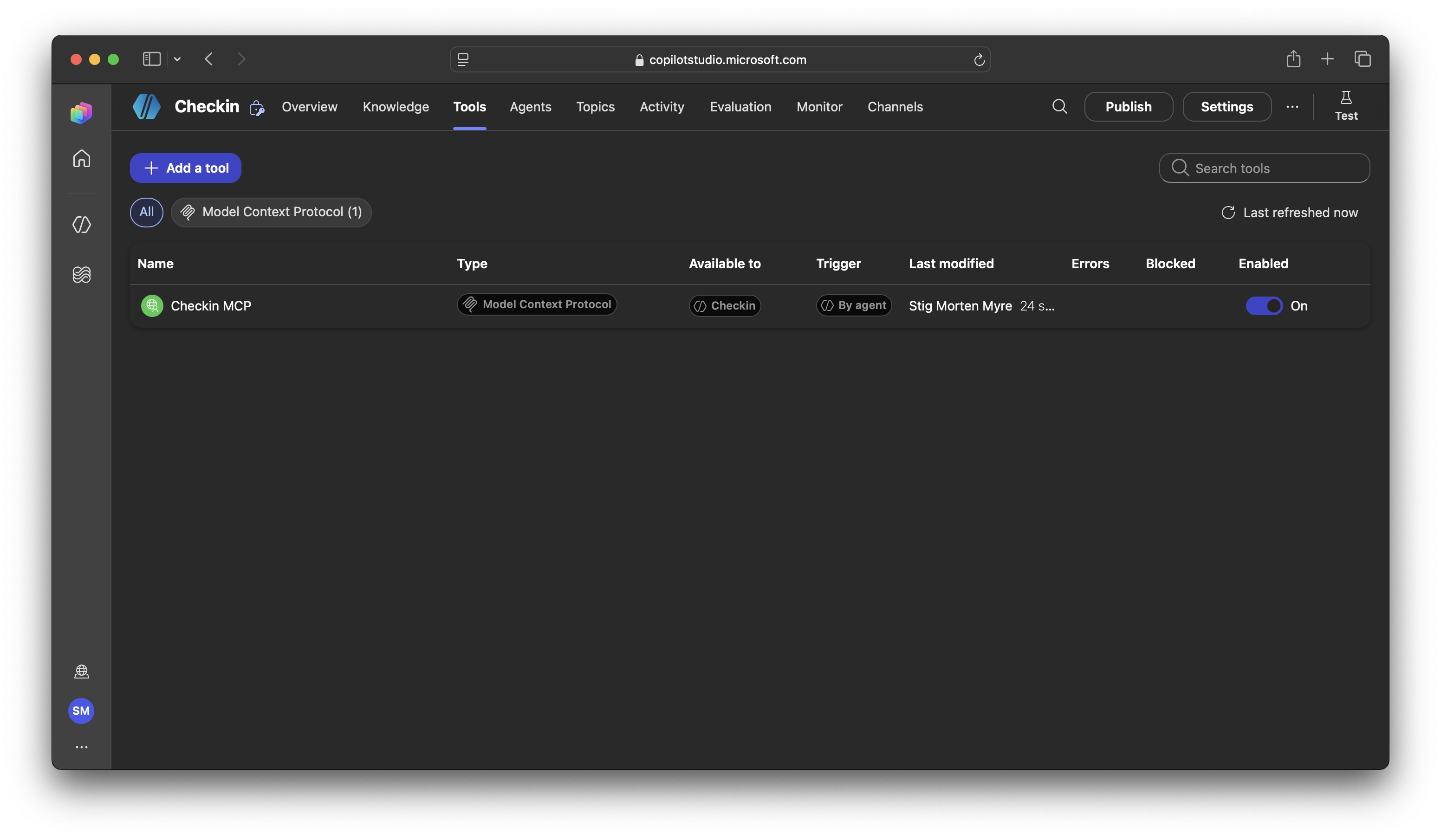
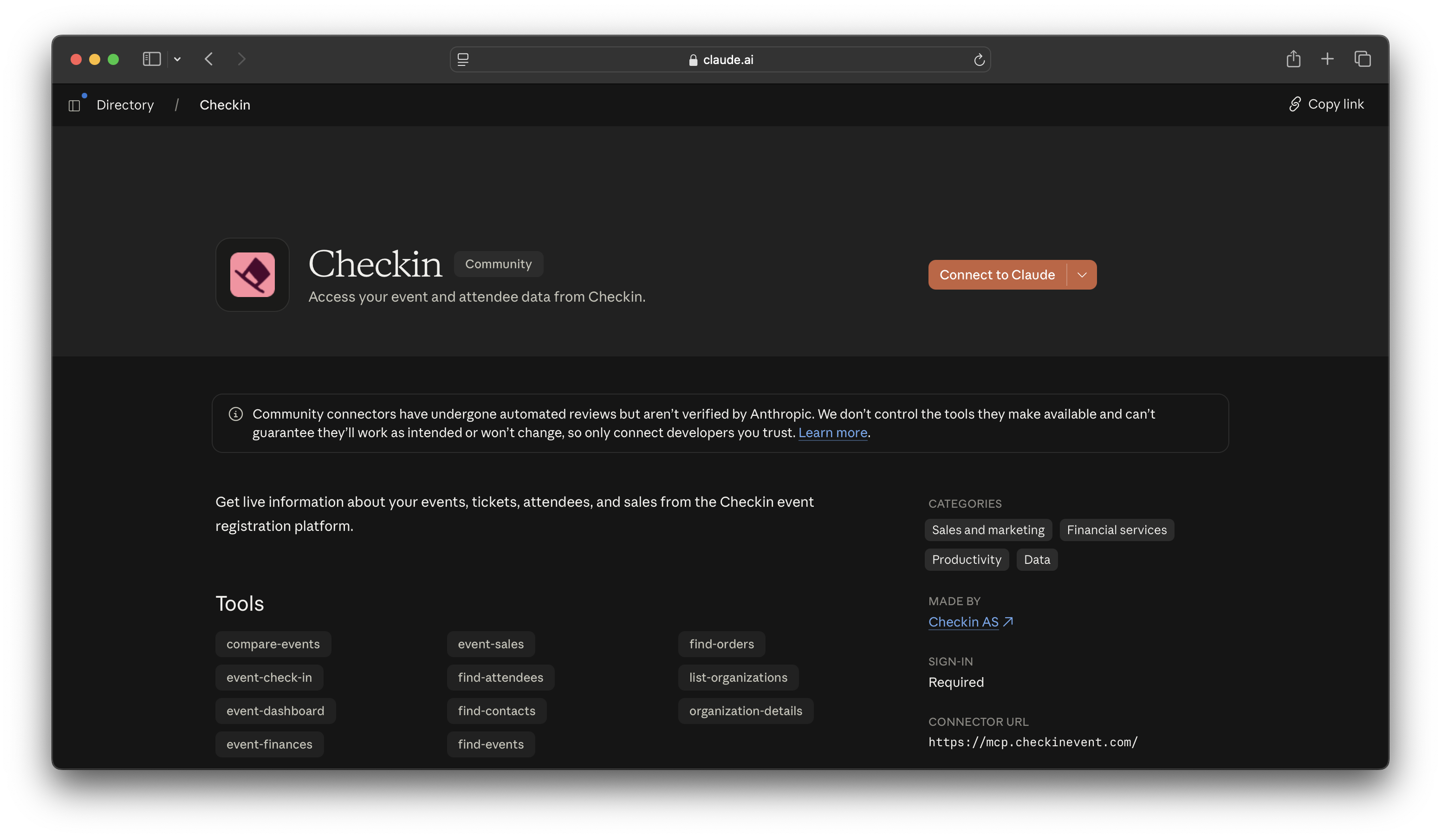
Find Checkin in the Claude Connectors Directory and connect.
Open your AI tool and add a new connector. Paste .
You’re sent to Checkin’s login page, where you confirm that the AI may access your account.
You’re sent back — ready to ask about sales, attendees and finances.
Ask your events anything
Connect Checkin to your AI tool and get answers from your own data — without building a single report.
All numbers on this page are sample data.