.svg)
Talk to your event data
Connect an AI tool straight to your Checkin account. Ask in plain words — get answers from your own events in seconds. No reports, no exports, no extra cost.
 Checkin
Sample data for the demo. Once you’re connected, your assistant answers with your own numbers.
Ask, and Checkin finds the answer
Examples of what the assistant can answer once it’s connected to Checkin. Tap a question and it plays in the demo above.
0 of 156 attendees have registered allergies or accessibility needs.
Names hidden by default — ask explicitly for personal details.
What you used to request a report for, you can now simply ask about.
Eleven tools, two categories
The assistant picks the right tool by itself based on your question. Here’s what it has to work with.
Search and lookup
Analytics and reporting
Built for privacy
One switch, set by your administrators: personal data hidden, or personal data available. When it’s on, no one querying your account can pull a name, an email or a phone number — no matter how they ask. Contact lookup disappears entirely.
Only authorized access
Access follows the authorization you grant — one organization, or several if you include subunits. No sessions are stored; every single call carries its own token.
Admins hold the switch
An organization-level setting, not a per-user preference. It covers every AI client connected to that organization, until an administrator changes it.
Masked by default
With the switch off, attendee data still arrives as initials and masked email — full names only when you ask. Statistics and finances carry none of it, either way.
Full audit log
Every call is logged with tool, organization, user and timestamp.
You stay in control: you can revoke access at any time in the AI tool.
How the connection works
MCP (Model Context Protocol) is an open standard for connecting AI tools to data. You add the server once — then it translates your questions into safe lookups in Checkin.
# You ask:
"How are ticket sales for Annual Conference 2026 going?"

# The assistant calls the tool:
{
  "tool": "event-dashboard",
  "event": "Annual Conference 2026"
}

# Checkin answers:
{
  "sold": 342, "capacity": 400,
  "revenue_nok": 487500,
  "waitlist": 12,
  "next_actions": ["sales_over_time", "compare_events"]
}
How to connect
You need a Checkin account and an AI tool that supports MCP. The connection is included with Checkin — no extra cost. Pick your tool below.
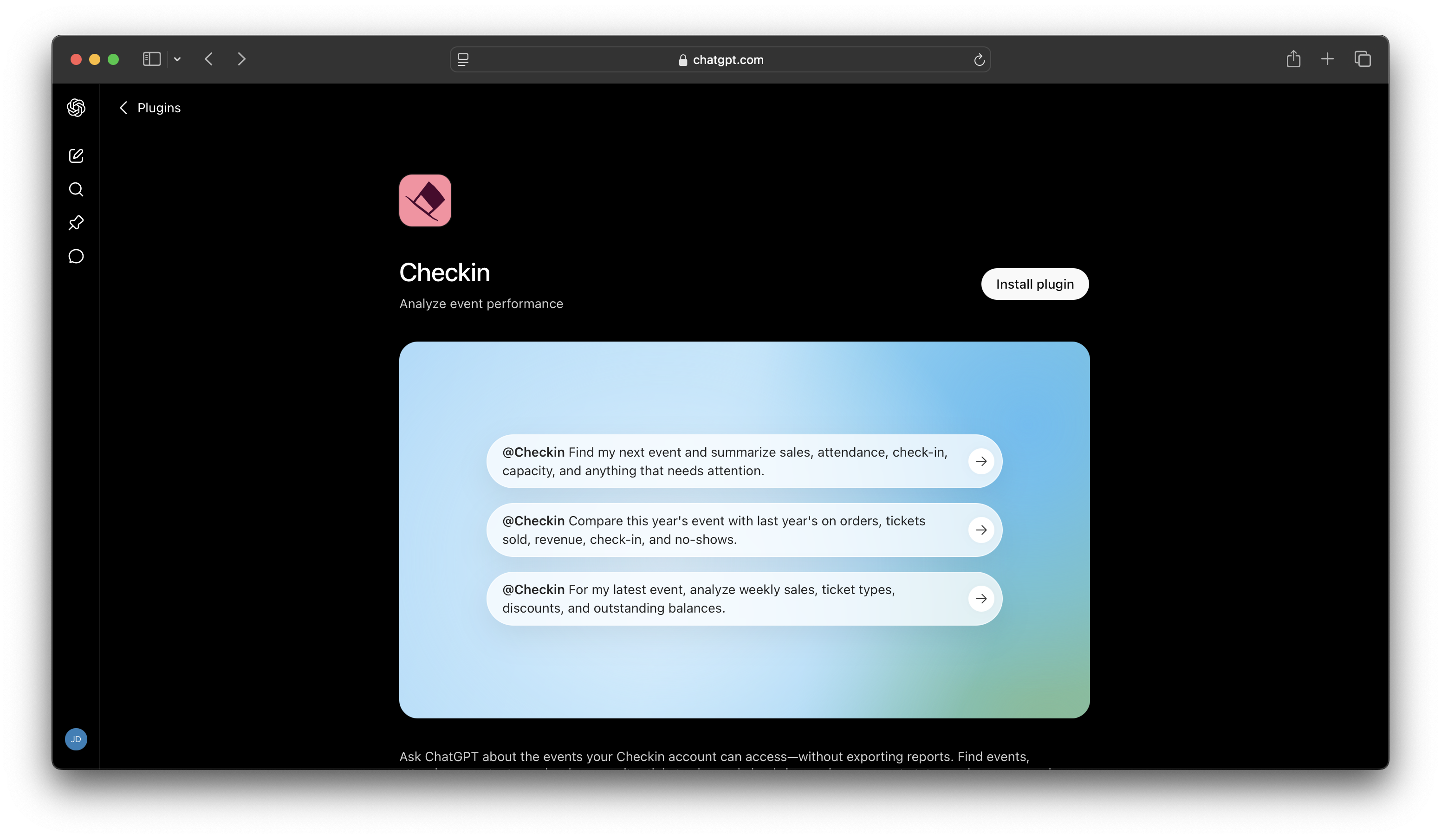
Find Checkin in ChatGPT’s app directory and install it.
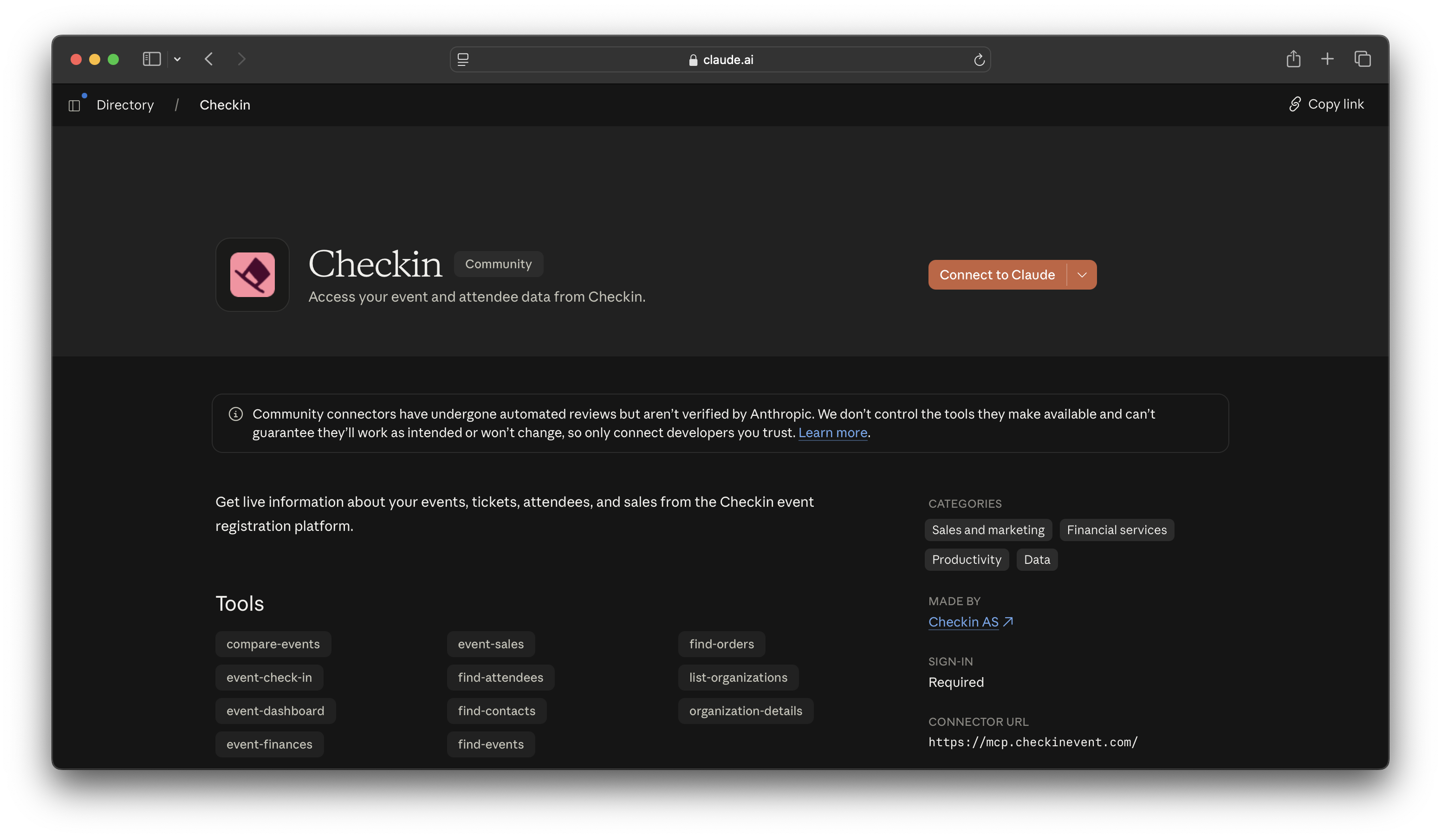
Find Checkin in the Claude Connectors Directory and connect.
Open your AI tool and add a new connector. Paste .
You’re sent to Checkin’s login page, where you confirm that the AI may access your account.
You’re sent back — ready to ask about sales, attendees and finances.
Ask your events anything
Connect Checkin to your AI tool and get answers from your own data — without building a single report.
All numbers on this page are sample data.